An app, without the download
Put Driving.lt on your phone.
Add Driving.lt to your home screen and open it like an app — with nothing to download from the App Store or Google Play.
Free — we'll show you the two taps for your device.
Why put it on your home screen
One tap away
Driving.lt opens straight from your home screen. No hunting for the browser, no typing the address.
Feels like an app
It opens full-screen, without browser tabs and address bars in the way.
No app store
You add it directly from the website. Nothing to download, nothing to wait for.
Always up to date
Pages load from the web every time, so there is never an update for you to install.
iPhone, Android and computer
Works in Safari, Chrome and the other supported browsers on all three.
How it works
Three steps, once. After that it behaves like any other app on your phone.
Open Driving.lt on your phone
Visit driving.lt in your phone's browser — Safari on iPhone, Chrome on Android.
Add it to your home screen
Open the browser menu and choose “Add to Home Screen” or “Install”, then confirm.
You're ready
The Driving.lt icon appears with your other apps and opens with a single tap.
What it looks like
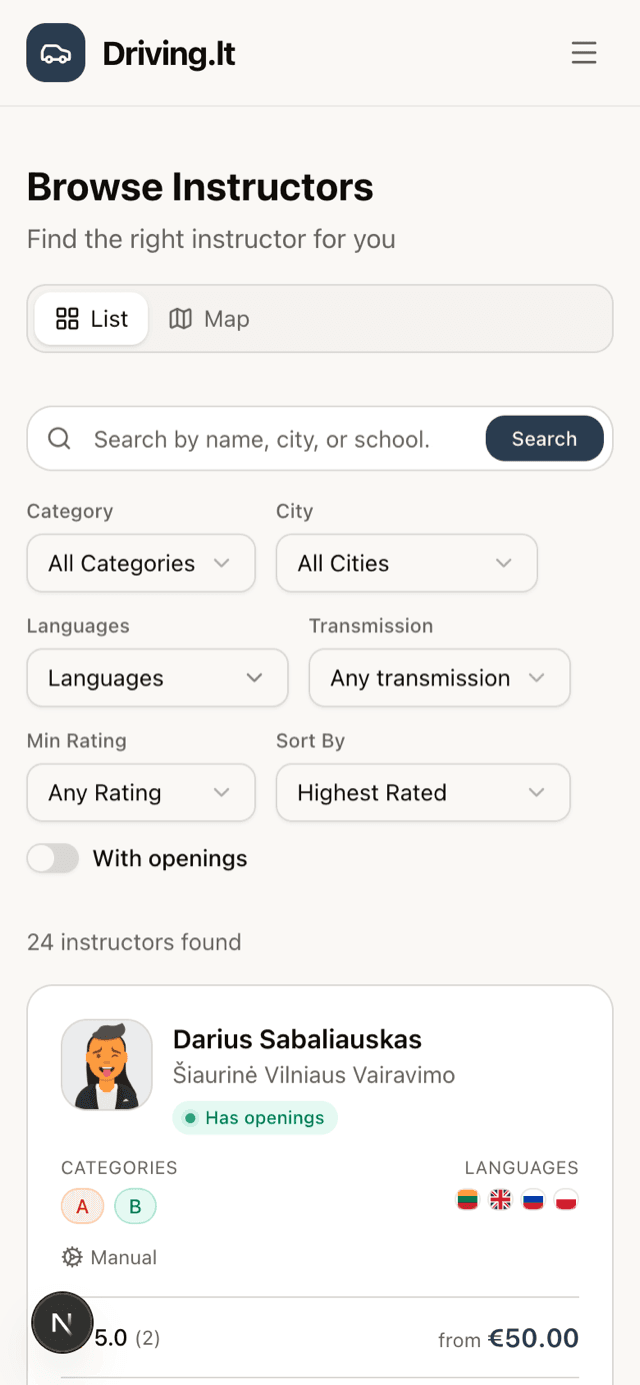
The same Driving.lt you already use — just reached in one tap instead of three.
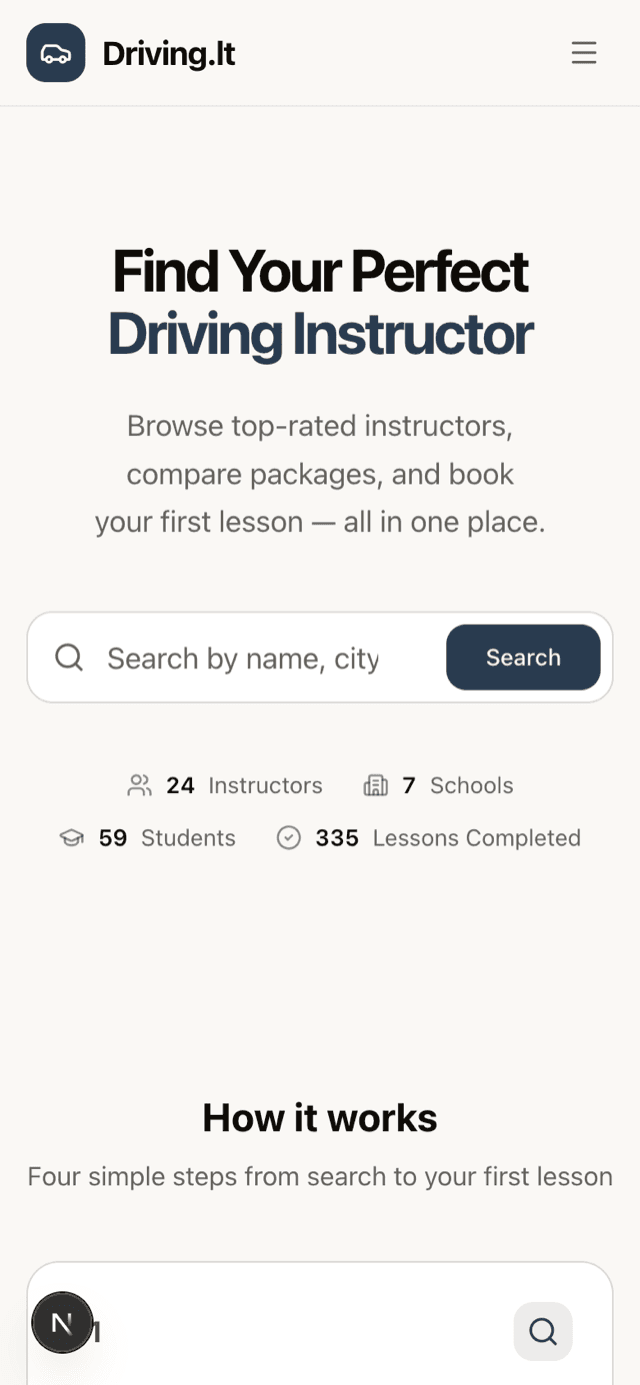
In the browser
You open driving.lt in Safari or Chrome, like any other website.
Add to Home Screen
One item in your browser's menu adds it to your phone.

On your home screen
The Driving.lt icon sits alongside your other apps.
Open as an app
It launches full-screen, with no address bar in the way.
Step-by-step for your device
The steps differ between iPhone, Android and computers. Choose your device below.
iPhone or iPad — Safari
Open driving.lt in Safari.
Open the share menu: tap ••• next to the address bar, then tap Share. On iPad — and in Safari's older Top or Bottom layouts — tap the Share button directly, the square with an arrow pointing up.
Scroll down the list and tap Add to Home Screen.
Leave Open as Web App switched on, then tap Add in the top-right corner.
Don't see “Add to Home Screen”? Scroll to the bottom of the share sheet, tap Edit Actions, and add it to the list.
Using a different browser?
iPhone or iPad — other browsers
Open driving.lt in your browser.
Tap the Share button — the square with an arrow pointing up, at the right of the address bar. Chrome and Firefox on iPhone use the same Share sheet Safari does.
Tap Add to Home Screen.
Confirm with Add.
Since iOS and iPadOS 16.4, browsers other than Safari can add sites to the Home Screen — Chrome does, and some others do too. If yours has no such option, open driving.lt in Safari instead; that route always works.
Menu labels are written as they appear in English. If your device is set to another language, look for the equivalent item in the same place.
Questions people ask
What exactly am I installing?
The Driving.lt website, wrapped so it behaves like an app. The technical name for it is a Progressive Web App (PWA). Your phone saves an icon and opens the site full-screen — there's no separate program to install and no account to create.
Do I need to download anything from the App Store or Google Play?
No. Driving.lt isn't in the App Store or Google Play. You add it straight from this website using your phone's browser, which is why it takes seconds and uses almost no storage.
Does it work on iPhone?
Yes. Open driving.lt in Safari, open the share menu — on iOS 26 that's ••• next to the address bar, then Share — and choose “Add to Home Screen”. Since iOS 16.4 some other browsers, Chrome among them, can do this too. iPhones never show an automatic install prompt, so you always add it yourself through the share menu.
Does it work on Android?
Yes. In Chrome, open the ⋮ menu and choose “Install and create shortcut” (older Chrome versions call it “Install app” or “Add to Home screen”), then confirm with Install. Samsung Internet and Firefox have their own equivalent in the same menu. Chrome may also offer to install Driving.lt on its own once you've used the site for a while.
Will I have to update it?
No. Driving.lt loads its pages from the web every time you open it, so you always get the current version without installing anything. The flip side is that you need an internet connection — the app doesn't work offline.
Can I remove it later?
Yes, the same way you remove any app. On iPhone and iPad, touch and hold the icon, tap Remove App, then Delete App. On Android, touch and hold the icon and choose Uninstall — or find Driving.lt under Settings → Apps. On a computer, open Driving.lt from your home screen or Dock and use its own ⋮ menu to uninstall it; on a Mac you can also move it from your Applications folder to the Trash — dragging it out of the Dock only unpins it. Removing it doesn't touch your account, bookings or payments.
Is it different from the website?
It's the same Driving.lt — the same account, the same instructors, the same bookings. It just fills the whole screen and starts from your home screen. One thing to know on iPhone and iPad: the installed app keeps its own separate storage, so the first time you open it you'll need to sign in again, even if you were already signed in in Safari.
Take Driving.lt with you.
Add it to your phone and your instructors, lessons and payments are one tap away.
Free — we'll show you the two taps for your device.